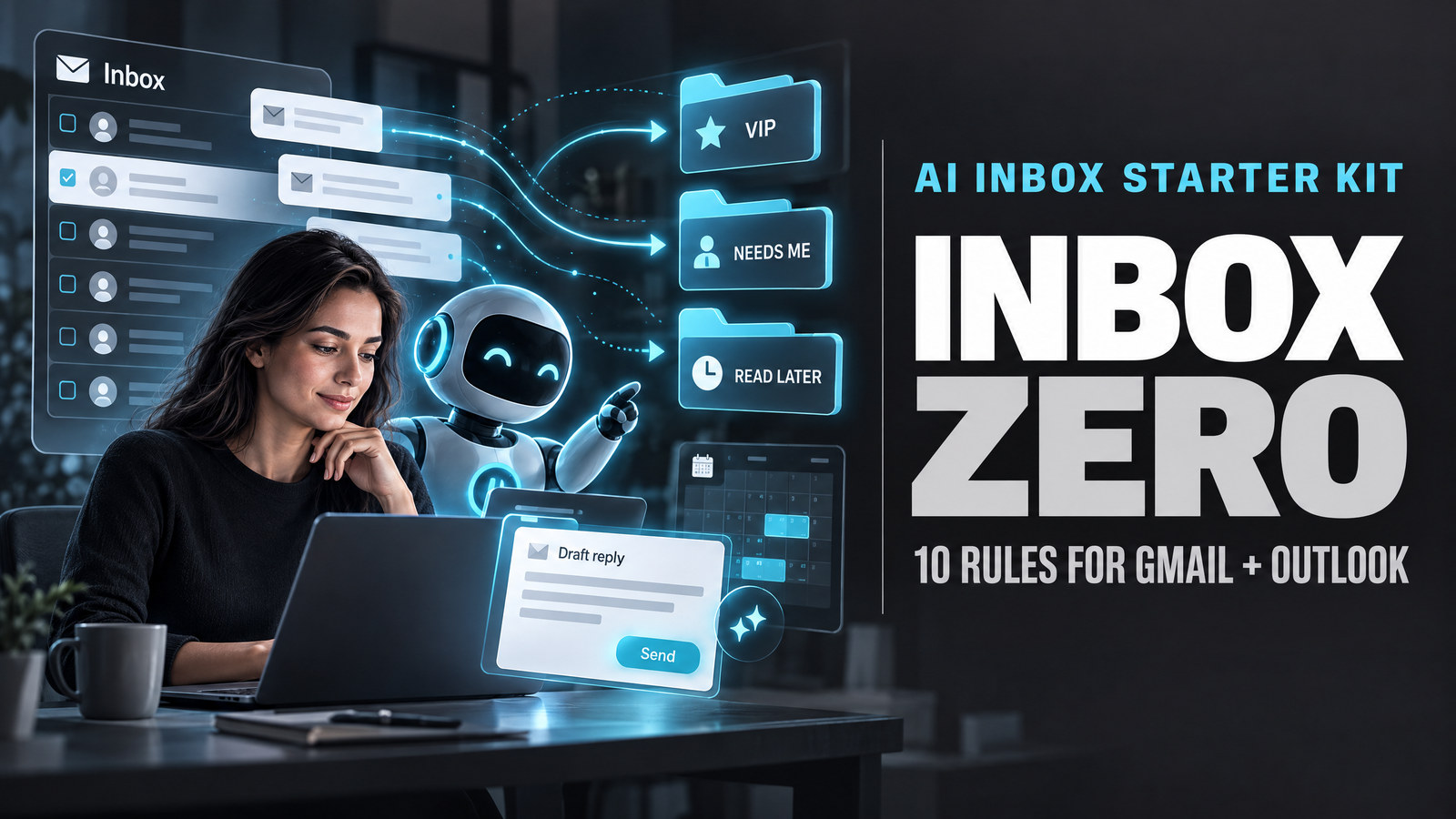
Quick answer: Inbox Zero is an AI email assistant for Gmail and Outlook that can sort messages and draft replies from plain-English rules. The iTMunch AI Inbox Starter Kit walks through setup in four steps, provides ten rules to customize, and recommends keeping automation under review. You still check each draft and press send.
The 35-second iTMunch video introduces the tool with examples for meeting requests, cold sales pitches, newsletters and sensitive pricing emails. The one-page starter kit fills in the practical details: what to connect, which rules to paste, and how to test them before trusting them with a real inbox.
What Inbox Zero does—and what the numbers mean
Inbox Zero’s official documentation describes an assistant that works with Gmail and Outlook, organizes messages, drafts replies and accepts rules written in plain English. The shared video rounds the GitHub count to 12,000 stars; the repository displayed 12.7K stars when checked on October 21, 2026. GitHub star counts change and are not a security review.
The starter kit describes the project as AGPL-3.0 and free to self-host. Read the current repository license before deploying it: the license file identifies GNU AGPL version 3 but also lists additional terms, including a commercial-monetization restriction and an enterprise-license requirement for organizations with five or more business users, with stated exemptions. Those terms make “free to self-host” too broad as a blanket description for every business use. Check the full text and contact the project before relying on it for commercial or workplace deployment.
The kit’s hosted-plan snapshot says “from $20/month” and a seven-day trial. On October 21, 2026, Inbox Zero’s pricing page showed a seven-day trial and a Starter price of $20 per user per month with monthly billing; its annual selection displayed $18 per user per month. The page separately describes its email app as free. The kit says its pricing, star count and features were checked on October 20 and may change.
How to set up the AI Inbox Starter Kit in four steps
- Connect Gmail or Outlook. Sign in at getinboxzero.com, choose your mailbox and review the permissions before approving them.
- Set up the Assistant. Open Assistant and finish the guided setup. The kit says the starting rules cover newsletters, marketing and drafts; Inbox Zero’s current getting-started guide also describes default handling for notifications.
- Paste and personalize the rules. Add the rules below in plain English. Replace every bracketed example—such as
[manager],[@keyclient.com]or[our product/services]—with details that fit your job. - Connect a calendar if you want meeting drafts. The kit says this lets a meeting reply offer real free slots. Calendar access is optional; connect it only if you want availability-aware scheduling, then verify every suggested time.
The kit estimates about 10 minutes for setup. Your actual time can vary with account permissions and calendar setup. See the official Getting Started guide for the current connection steps.
The 10 copy-ready Inbox Zero rules
Paste these into the assistant and customize the bracketed fields. Add the first rule before experimenting with reply drafts.
1. The safety rule — add this first
If an email is about contracts, legal terms, pricing exceptions, discounts, refunds or a complaint, do not draft a reply. Label it “Needs Me” and keep it in my inbox.
2. Meeting requests
If someone asks to meet or book a call, draft a reply offering two times I’m free in the next 5 working days. Keep it under 60 words.
3. VIP senders
If an email is from [manager / top clients / @keyclient.com], label it “VIP,” keep it in my inbox and draft a reply for me to review.
4. Cold sales pitches
If an email is an unsolicited sales pitch from someone I’ve never emailed, label it “Cold Email” and archive it.
5. Newsletters
If an email is a newsletter or promotion, label it “Read Later” and archive it. Never draft replies to these.
6. Invoices and receipts
If an email contains an invoice, receipt or payment confirmation, label it “Finance” and archive it.
7. Tool notifications
If an email is an automated notification from [Slack / Jira / Asana / HubSpot / GitHub], label it “Notifications,” mark it read and archive it.
8. Document requests
If someone asks for a document, deck or file, label it “To Do” and draft a short reply saying I’ll send it by end of day.
9. Warm introductions
If someone introduces me to a new contact, draft a reply that thanks the introducer, moves them to BCC and suggests a quick call with the new contact.
Before sending a warm-introduction reply, check the To, CC and BCC fields yourself. A recipient mistake can expose a conversation to the wrong person.
10. Inbound leads
If an email is an inbound enquiry about [our product / services], label it “Lead,” keep it in my inbox and draft a friendly reply asking for their team size and timeline.
What the video condenses: labels, blocking and unsubscribing are different
The video makes the workflow look instant, but the starter-kit rules are more specific. Rule 4 labels and archives a cold pitch; it does not itself say to block the sender. Inbox Zero lists a separate Cold Email Blocker feature. Rule 5 archives newsletters; it does not unsubscribe from them. Bulk Unsubscribe is a separate cleanup tool, so review the senders it identifies before applying an unsubscribe action. The meeting rule also depends on a calendar connection, and the times in any draft still need checking.
“Agent, not autopilot”: the five safety checks
- Week one: drafts only. Let Inbox Zero label, archive and draft, but do not let it send. Review every draft before you press send.
- Test before you trust. Run each rule’s Test tab against recent emails, then inspect History to see what matched and why.
- Watch for invented details. AI drafts can make up dates, prices or promises. Check every number and date before sending, along with recipients, links and attachments.
- Start gently. Begin with labeling and archiving. Add replies and forwarding only after the rules match correctly.
- Clean the backlog separately. Use Bulk Unsubscribe and Bulk Archive for old mail. Prefer archiving over deleting while you are learning how the tools behave.
Inbox Zero’s security and AI guide says enabled rules run automatically, so a rule is not a draft-only safeguard unless its actions are configured that way. The guide recommends testing rules and reviewing Assistant → History. If a rule behaves unexpectedly, disable it while you investigate.
Before connecting a work inbox
Inbox Zero’s documentation says email permissions allow the service to read and organize messages and create drafts. Calendar and Drive permissions are additional access requested when those features are connected. The hosted service’s privacy policy, last updated May 4, 2026, says email content and metadata may be processed by third-party AI services for requested features. It also says those providers are not allowed to train on customer data and that full email content is not permanently stored, while sender information, some email metadata and summaries may be retained. These are the company’s policy statements; review the latest policy and permission screen yourself.
If the mailbox belongs to your employer, check your organization’s rules and get approval before connecting it. The product’s security guide says connections can be revoked through Inbox Zero or the email provider’s security settings. For any account, review the permissions requested, keep sensitive conversations out of automated rules where possible, and inspect every generated reply before sending.
Links and source material
- Inbox Zero
- Inbox Zero GitHub repository and its current license
- Inbox Zero documentation, including getting started and security, permissions and AI
- Current pricing and privacy policy
- Watch the 35-second iTMunch video that inspired this guide
- Follow @it_munch on Instagram for one useful AI tool each week
Editorial note: iTMunch is not affiliated with Inbox Zero. Product details, pricing and GitHub stars can change. The starter kit’s original snapshot was dated October 20, 2026; live product pages were checked October 21, 2026. This article is an informational guide, not legal advice or a security certification.
Inbox Zero AI Inbox Starter Kit: 10 Rules for Gmail and Outlook